Faculty Financial Inquiry Tool (FFIT)
Originally developed to help faculty manage their university financial resources, the Faculty Financial Inquiry Tool (FFIT) provides balances and drill-down transaction details for all of a Principal Investigator’s (PI) individually owned active accounts and funds. The tool also provides the same information for organizationally owned (referred to as OFIT) accounts and funds in separate sections as appropriate.
Current, projected, and forecasted balances are calculated using a combination of budget, revenue, expenditure and commitment information as appropriate for each account, including information from the Commitment Management System (CMS) if desired.
Sample Business Questions
- Are project-to-date expenses in alignment with the project budget?
- What is the projected remaining balance, with or without hard commitments (those entered in Oracle systems)?
- What is the projected remaining balance, with or without soft commitments (those entered in CMS as what if scenarios)?
- What are the actual expenditures affecting large variances from budget? Do the expenditures look reasonable and valid?
- Do the projected expenditures require an expense or fund transfer to cover any shortfalls?
- Do I have a balance on my organization labor suspense account that needs clearing?
Selection Criteria
You can select to view all accounts for a PI or an organization.
- Select the accounts you want displayed:
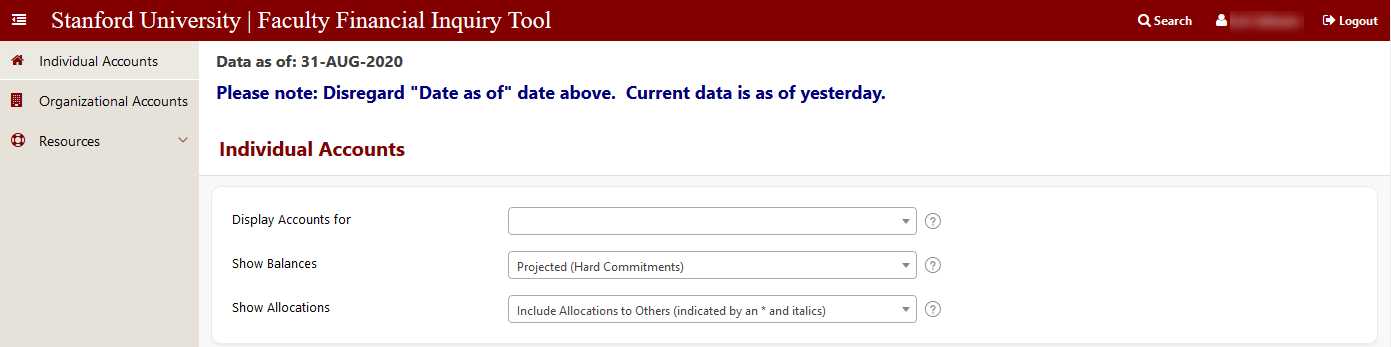
- On the upper left portion of the screen select
- Individual Accounts to view PTA information for principal investigators (PI) or Organizational Accounts to view PTAs linked to an organization.
- Alternatively you can click on the Search icon on the top red bar and search by Award or Project. (The results displayed allow you to then select the owner or owning organization.)
- On the upper left portion of the screen select
- Display Accounts for: Depending on what you selected above, select the PI or organization from the list of values. Typing characters reduces the list but you must still click to select.
- Show Balances gives you the following options of what to include:
- Projected (Hard Commitments) includes future salary, student, purchasing costs and their associated burdens. For more information, refer to Commitment Management.
- Current (No Commitments)
- Forecasted (Soft Commitments) are what-if scenario commitments created using the Commitment Management System (CMS).
- Show Allocations includes or excludes PTAs which have been allocated to others (i.e. the award owner, who controls the funding, is different from the task owner, who controls the spending).
- Include Allocations provides a full list of accounts for which the PI or organization has some responsibility for, directly and indirectly. Allocations to others are italicized and indicated with an asterisk(*).
- Exclude Allocations only displays accounts the PI or organization are directly responsible for (i.e. is both the award owner and task owner)
Report Views
The FFIT summary report displays the relevant accounts/PTAs into five sections by award types.
- For each section you can click on the hyperlinks that lead to additional screens that include mid-level summary information and available transaction details.
- Award owners (or organizations) can see all details for a given award, including revenue and transfers, expenditures, and outstanding commitments; project and task owners can drill down to appropriate expenditure and commitment details.
- Breadcrumb trails at the top of each page indicate the path taken to the current screen.
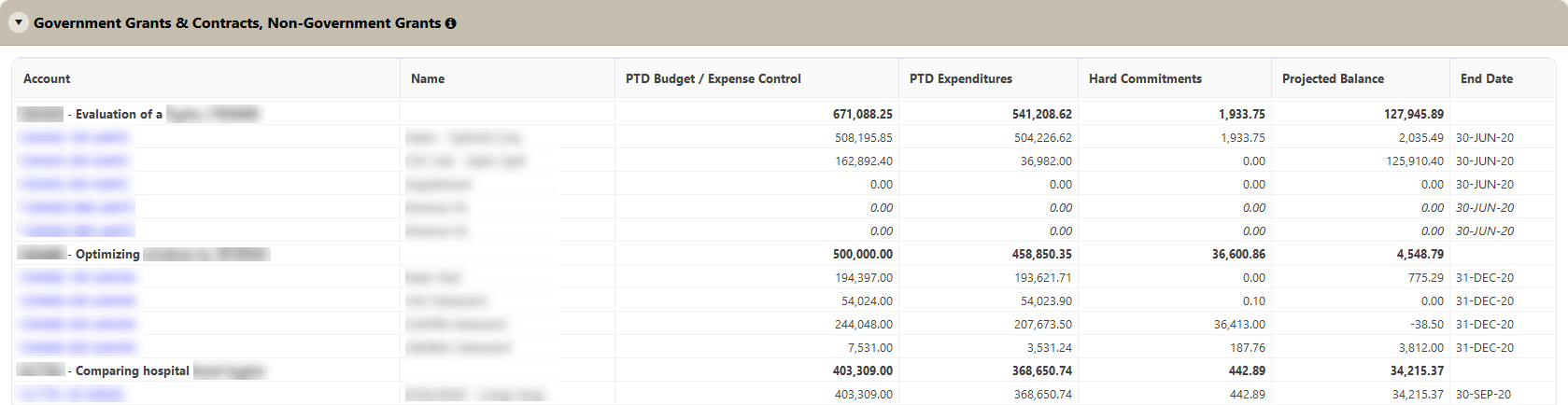
Government Grants & Contracts and Non-Government Grants
- Review and manage project expenditures against the project budget, in accordance with the timing and terms of the related sponsored agreement.
- The balance reflects the remaining unspent/uncommitted project budget and is calculated as:
PTD Budget/Expense Control –PTD Expenditures –Outstanding Commitments (either “hard” or “CMS”)
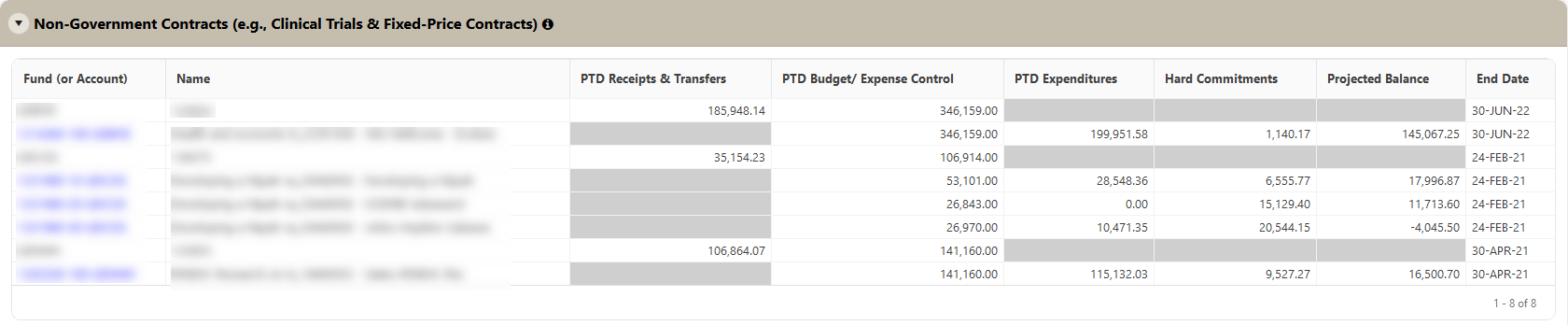
Non-Government Contracts (e.g., Clinical Trials & Fixed Price Contracts)
- Review and manage and/or monitor collection of receipts, in addition to managing project expenditures against the project budget.
- At the award level, cash receipts to-date are shown in comparison to the award budget.
- At the account level, the balance reflects the remaining unspent/uncommitted budget and is calculated as:
PTD Budget/Expense Control –PTD Expenditures –Outstanding Commitments (either “hard” or “CMS”)
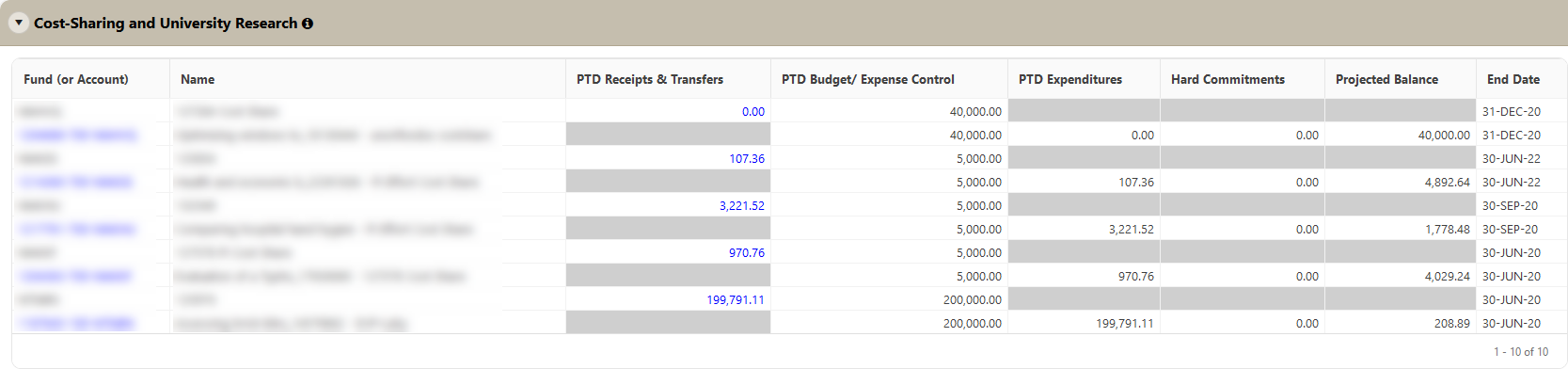
Cost-Sharing and University Research
- Review available funding to-date is shown in comparison to the award budget.
- The total receipt and transfer amount is also drillable to explore individual funding transfers.
- At the account level, the balance reflects the remaining unspent/uncommitted budget and is calculated as:
PTD Budget/Expense Control –PTD Expenditures –Outstanding Commitments (either “hard” or “CMS”)
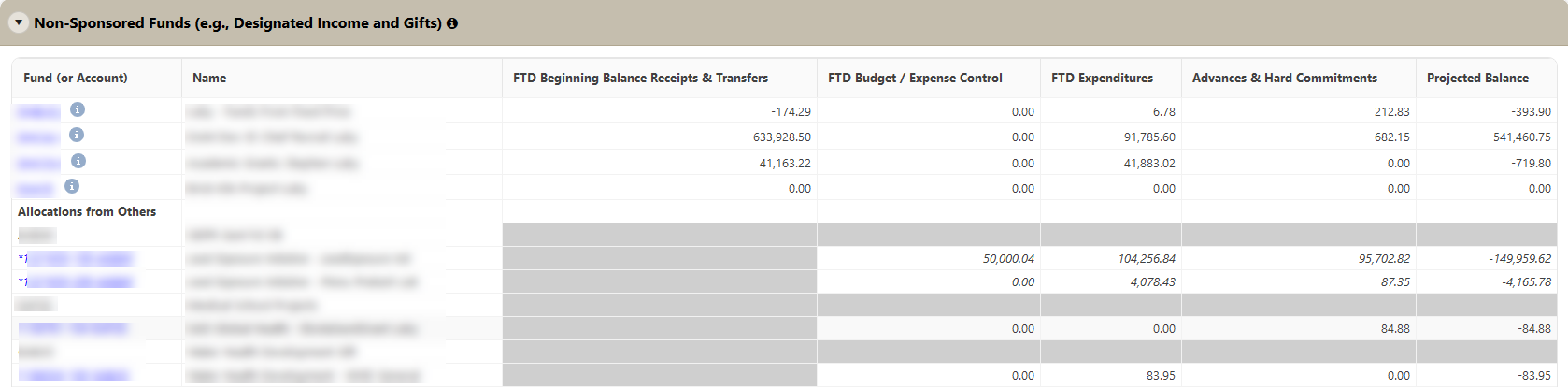
Non-Sponsored Funds (e.g., Designated Income & Gifts)
- Review and manage expenditures against actual receipts and balances carried forward (rather than budgets).
- Ensure awards are not overspent and that the monies are spent in accordance with any donor requirements.
- When drilled to the mid-level summary level, you can specify current or previous fiscal years.
- In most cases, budget information is not relevant, so balances reflect the remaining unspent receipts and are calculated as:
FTD Beginning Balance, Receipts & Transfers –FTD Expenditures –Advances & Commitments (either “hard” or “CMS”)
- Local administrators may enter budget information for non-sponsored awards (via iBudgets) in order to compare expenditures against current year budget (instead of available funding). In that case, award balances will reflect “unbudgeted funds” and are calculated as:
FTD Beginning Balance, Receipts & Transfers –FTD Budget/Expense Control
- and account balances are calculated as:
FTD Budget/Expense Control –FTD Expenditures –Outstanding Commitments (either “hard” or “CMS”)
Click on the blue “i” icon to view detailed Award information to display the PTA, Fund Purpose and other award information.
Clearing Accounts
- In most cases, budget information is not relevant in this section, so balances will be calculated as:
FTD Beginning Balance, Receipts & Transfers –FTD Expenditures –Advances & Commitments (either “hard” or “CMS”)
Understanding the Data
Timing of Data
For all intents and purposes, FFIT contains “day-old” data. Notable exceptions include transactions which are fed to the Oracle Financials System on a less-than-daily basis (e.g., student aid transactions, which are fed from the GFS system either semi-monthly or monthly). Additionally, all transactions related to a new fiscal year are not available for the first three weeks in September until the close of the prior fiscal year is complete.
Excel Downloads
Links to download the current page results to Excel are located in the bottom left of each screen.
For information about how the different commitments are created, refer to Commitment Management.