

This document provides instructions for how to cancel/delete a purchase requisition or purchase order (PO).
Cancel a Purchase Requisition / Purchase Order (PO)
Before You Start
The process to cancel a purchase requisition depends on the status of the requisition.
- If the requisition has not been approved and there is no notification to the supplier via a PO, the requisition can be canceled/deleted (see options below). SmartMart and Amazon Business requisitions can only be canceled/deleted when the requisitions are in Incomplete status, due to the rapid approval turnaround from In Progress to Approved.
- Non-Catalog requisitions can be canceled when the status is Incomplete or In Progress, as the approval turnaround time may not be as rapid.
- Purchase Orders that have been communicated to the supplier must be canceled directly with the supplier before canceling the PO in Oracle. Canceling a PO in Oracle does not automatically notify the supplier.
A Purchase Order (PO) can only be canceled if (a) goods have not been received, and (b) there are no matched or paid invoices on the PO.
Only the original requester can cancel the requisition before a purchase requisition with an incomplete status becomes a PO.
- Enter ofweb.stanford.edu in the browser
- Click Login
- As prompted, log in using SUNet ID, and password
- Select SU Internet Procurement (under Navigator)
- Select My Requisitions from the Header
- Select the radio button by the requisition you want to cancel The requisition status will display after selecting the radio button.
- Select Delete above the table
- Select Yes to confirm deletion
- Only the original requester can cancel the requisition before a purchase requisition with an incomplete status becomes a PO.
- To cancel a purchase requisition with an In Progress status, change the requisition status from In Progress to Incomplete first.
- Enter ofweb.stanford.edu in the browser
- Click Login
- As prompted, log in using SUNet ID, and password
- Select SU Internet Procurement (under Navigator)
- Select My Requisitions from the Header
- Select the requisition number (status is In Progress) you want to cancel
- Select Change
- Select Yes to remove the requisition from the approval process
Requisition is now in the Edit and Submit status. - Select My Requisitions from the Header
- Select OK
The requisition status is changed from In Progress to Incomplete. - Select the radio button by the requisition you want to cancel from the Requisitions page
- Select Delete above the table
- Select Yes to confirm deletion
Once the requisition is fully Approved and a Purchase Order has been created:
- Log in to Oracle Financials
- Launch Requisition and Purchase Orders Query, from SU Inquiry Tools and Forms
- Find the specific Purchase Order to cancel
- Enter eight-digit Purchase Order number in the Purchase Order Number field
- Alternatively, enter a seven-digit Requisition number in the Requisition Number field and then select the Purchase Order from that page
- Select Search
- Confirm that this is the correct Purchase Order you wish to cancel
- Enter eight-digit Purchase Order number in the Purchase Order Number field
On the top right hand side of the screen under PO Details row, at least one of three options may appear:
- Initiate Finally Close Process or Review Ineligibility to Finally Close. For more information, see How To: Finally Close a Purchase Order (PO)
- Change PTA or Review Ineligibility to Change PTA. For more information, see How To Change a PTA on an Approved Purchase Order
- Cancel a PO or Review Ineligibility to Cancel PO.
Select the option in the top right, Cancel a PO
-
After selecting Cancel PO, an alert confirmation popup appears,
- Alert
Are you sure you want to cancel PO 6326XXXX? Once canceled, no further actions can be taken.
Options: Return to PO Details or Cancel PO- If you select, Return to PO Details, it will return to the previous page.
- After selecting Cancel PO, a pop-up confirmation page appears,
PO Submitted for cancelation. Please check back in 5-10 minutes or sooner. OK (Select OK to remove the pop-up).
The button at the top right showing Cancel PO, will now say, Review Ineligibility to Cancel PO
-
The requester will be notified via Email when the cancelation is completed.
-
The Cancel PO History of the Purchase Order can be viewed in Req and PO Query to see when the Cancelation is completed.
- Locate Cancel PO History at the bottom of the Req and PO Query Page for this PO
(Cancel PO History status will show to all who view this PO in Req and PO Query)
- Status: Pending, Message: Pending
Or - Status: Success, Message: PO Canceled
- Select Review Ineligibility to Close PO
- Screen appears providing PO information with Columns in bold showing possible reasons Close PO is not available. Columns with Print in RED below column name is the reason this PO cannot be Closed
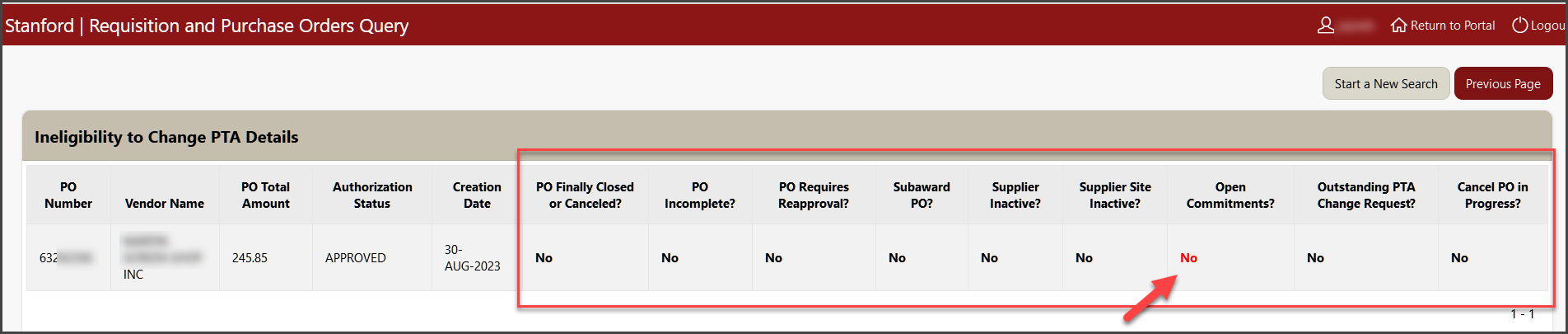
- Refer to the table below for suggested options (in bold) based on the ineligibility stated:

For more information, see Topic Overview: Purchase Order Process for guidance on change activities
General Guidelines – POs cannot be canceled when:
- The Order has been communicated to the supplier through alternative means (e.g., called in to the supplier) and the supplier has fulfilled the order.
- Accounts Payable has received an invoice from the supplier (e.g. attached to the PO, matched against the PO, or paid under this PO).
- The Close Status column for the PO Line Details in Req and PO Query is anything but Open.
- The department performed receiving and status in the Close Status column for the PO Line Details in the Req and PO Query is Closed or Closed for Receiving.
- Goods have been received by the department (this is now an official order, and a return of the product is made and a credit from the supplier is needed).
- The department can reverse the receiving if accidentally completed via My Receipts in iProcurement if they never received the product.
