OBI Authority Dashboard Home
Oracle Business Intelligence (OBI) authority reporting shows authority assignments by person, privilege or organizational perspective as well as privileges granted by an individual and grantors by privilege.
Other methods of viewing authority assignments include using the Financial Approval Authority Query Tool and the Authority Manager system.
Select the links below or tabs above to jump to reporting pages explaining how to use each of the listed query tools.
| Select this link... | ...for reports about |
|---|---|
| Authority Reporting | Search for authority grants by person, privilege or organizational perspective. |
| Privileges Granted By an Individual | View grants made by an individual with filters by system, business function, privilege and status. |
| Find a Grantor By Privilege | Find grantors for a given privilege with filters by system, business function, privilege and status. |
Authority Reporting
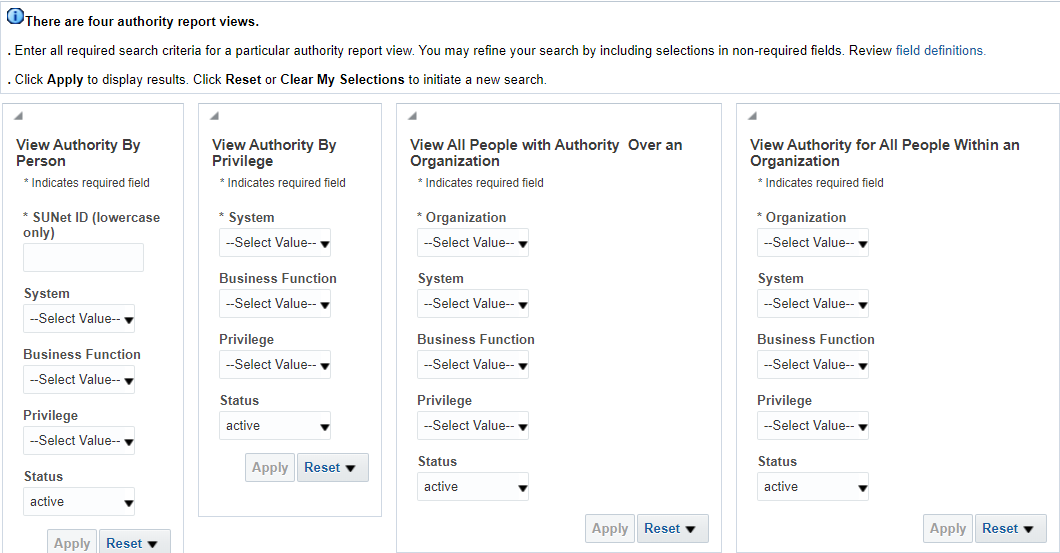
Displays reports of authority grants with filters by system, business function, privilege and status. The initial filter is by person, privilege or organization perspective using four separate options for making choices.
- View Authority By Person
- View Authority By Privilege
- View All People with Authority Over an Organization
- View Authority for All People Within an Organization
Sample Business Questions
- Who in my organization (org) has a particular authority grant (using org of a person’s job)?
- Who has authority over my org (using org of grants)?
- What is the authority of a particular person (recommend using Authority Manager for this)?
- Who has authority for a particular privilege?
Selection Criteria
To retrieve results, follow the Selection Criteria instructions near the top of the screen.
- Make entries in a single box.
- Each choice, after the first one, in sequence going down decreases the available choices, e.g., once you choose a system then only the business functions for that system are displayed.
| Selection Box | Perspective |
|---|---|
| View Authority By Person | A single person by SUNet ID |
| View Authority By Privilege | All people for given privilege(s) |
| View All People with Authority Over an Organization | Grants of authority with scope of given org or its children. This is a more financial or transaction-based perspective, showing the authority of any individuals with access to originate or approve transactions for that organization, regardless of where they work at the university. This would include individuals who work in a higher level department within that same budget unit (such as a dean’s office) or in another unit or central office. |
| View Authority for All People Within an Organization | Grants of authority for people with job work assignment org of the given value or its children. This is more of a human resources perspective of people working in an area. |
Report Views
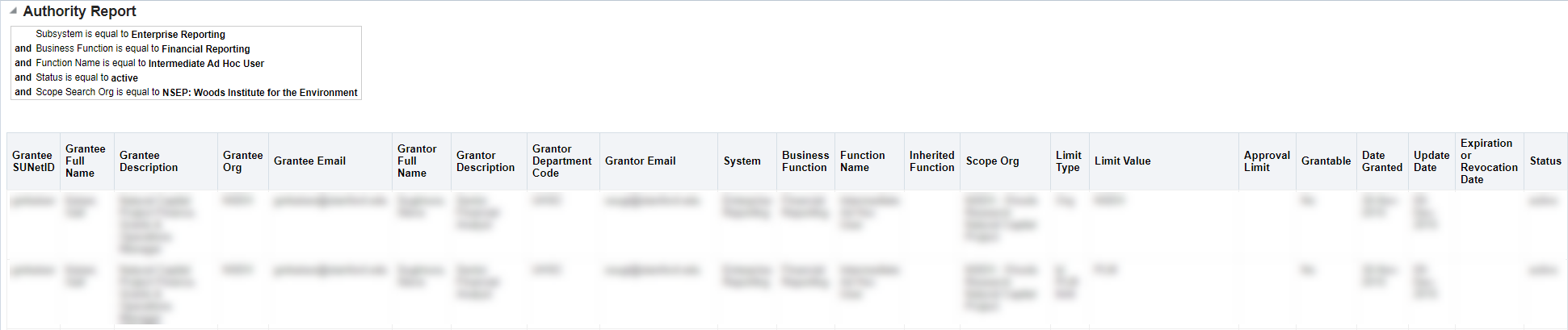
The Authority report returns one row for each distinct privilege and parameter for a person, which can be confusing because it shows many rows for a single person and privilege if there are a number of scope and limit settings. A more compact representation is given using the Authority Manager system.
Privileges Granted By An Individual
View privileges granted by an individual with filters by system, business function, privilege and status.
Sample Business Questions
- Which grants has an individual made?
Selection Criteria
- Enter a SUNet ID
Tip: To determine a person’s SUNet ID, view the details returned by the Stanford people search at Stanford Search or go directly to the Stanford Directory. Select Log in to see non-public information. - Each choice, after the first one, in sequence going down decreases the available choices, e.g., once you choose a system then only the business functions for that system are displayed.
Report Views
The Authority report returns one row for each distinct privilege and parameter, which can be confusing because it shows many rows for a single person and privilege if there are a number of scope and limit settings.
Find a Grantor By Privilege
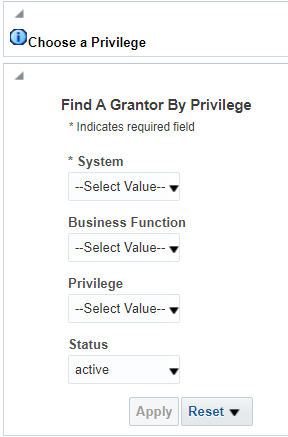
Find all grantors by privilege with filters by system, business function, privilege and status.
Sample Business Questions
Who can grant a privilege(s)?
Selection Criteria
- Each choice in sequence going down decreases the available choices, e.g., once you choose a system then only the business functions for that system are displayed.
Report Views
The Grantors by Privilege report shows every person who can grant the privilege(s). This can be a large amount of data; in which case you may want to move the report field “Grantor Org” to the prompts section of the report in order to be able to select a single org. Alternatively export the data to csv and filter by org.